How to listen
No frequencies to find and nothing to sign up for. Pick the way that suits you and follow the steps.

Listen live
Press play
The show plays right here in your web browser. Leave this page open while you listen.
The live player goes here as soon as the show's stream is connected. Until then, write to Tony to find out when the next show is on.
Step by step
On a computer
Any computer with speakers or headphones will do: a laptop, a desktop or a tablet.
-
Open this website
Type tonyangelsclassreunionoldies.com into the bar at the top of your web browser and press Enter.
-
Press Listen live
The red button at the top of every page. It brings you to the player, where one more press starts the music.
-
Turn it up
Use the volume on your computer or your speakers. Keep the page open: closing it stops the show.
Step by step
On a phone or tablet
iPhone or Android, it works the same way, and you can put the phone in your pocket while it plays.
-
Open the website
Open Safari on an iPhone or iPad, or Chrome on an Android phone, and go to tonyangelsclassreunionoldies.com.
-
Tap Listen live
Then tap the big play button. The music keeps going if the screen goes dark.
-
Keep it on your home screen
On an iPhone tap Share, then Add to Home Screen. On Android tap the three dots, then Add to Home screen. Next time it's one tap away.
Alexa and Google
On a smart speaker
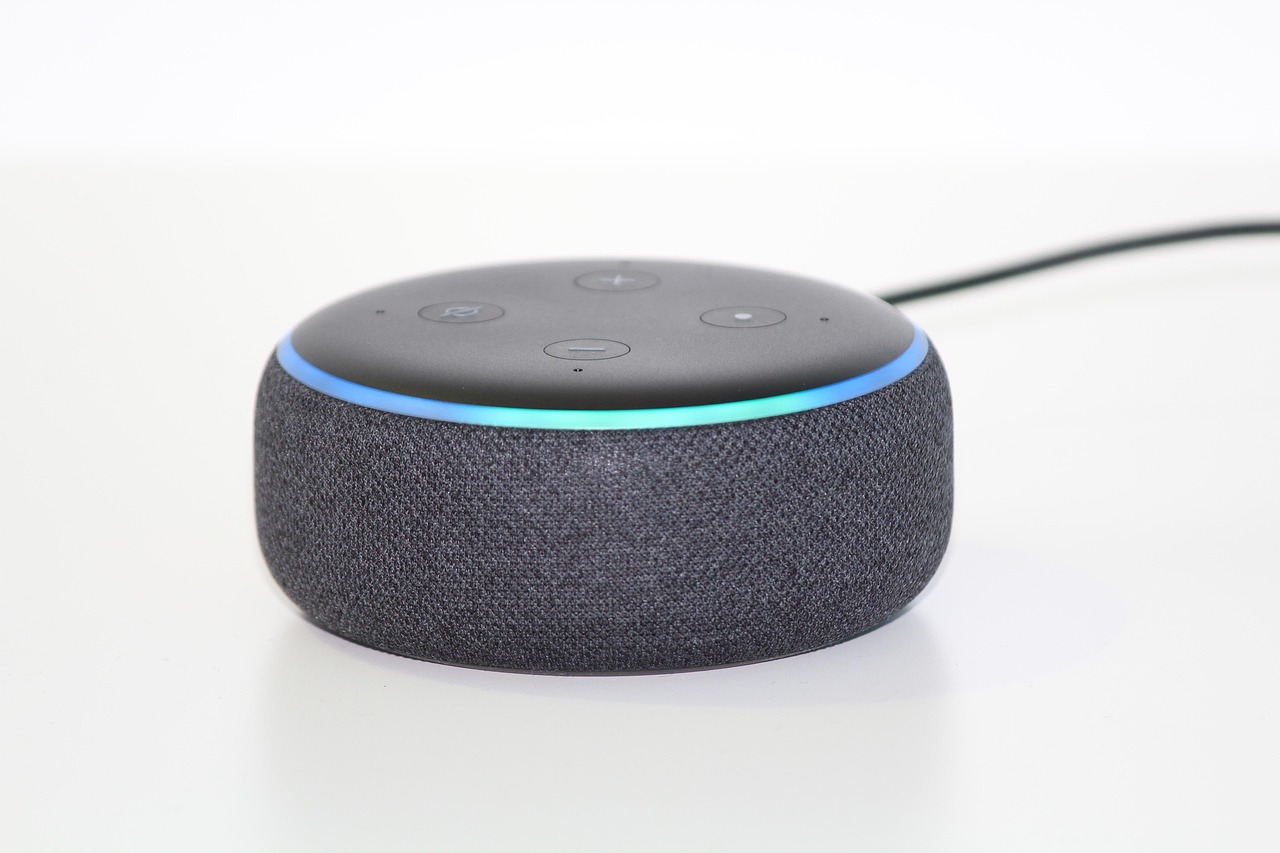
The easiest way is to play the show on your phone and send the sound to the speaker by Bluetooth. You only have to pair them once.
- Alexa (Amazon Echo): say "Alexa, pair Bluetooth". On your phone, open Settings, then Bluetooth, and tap the Echo when it appears.
- Google Nest or Google Home: open the Google Home app, choose the speaker, then Settings, Audio and Paired Bluetooth devices, and turn on pairing. Then choose it in your phone's Bluetooth settings.
- Start the show on your phone. It now plays through the speaker.
Next time, just say "Alexa, connect to my phone", or pick the speaker in your phone's Bluetooth list.
On the road
In the car
The show plays through the car speakers from your phone, just like a phone call does.
- Bluetooth: pair your phone with the car once (the car's handbook shows how), then start the show on your phone.
- Apple CarPlay or Android Auto: plug the phone in or connect it, start the show on the phone, and it plays in the car.
- An older car: a lead from the headphone socket to the car's AUX socket, or a small Bluetooth adapter, does the same job.
Set it all up before you drive off, and keep your eyes on the road.
Stream help
When it won't play
Most problems are fixed by one of these.
I press play and nothing happens
Give it a few seconds: the stream can take a moment to start. If it still doesn't play, reload the page and press play again. Check the volume on your device too, and that it isn't set to silent.
The sound stops and starts
That is usually the internet connection. If you're on a phone, try moving closer to your Wi-Fi router, or switch between Wi-Fi and mobile data. Closing other apps that use the internet helps as well.
Do I need to sign up or download an app?
No. There's no account and no app. Open this website and press play.
It works on my phone but not my old computer
Older web browsers sometimes can't play live streams. Updating the browser (Chrome, Safari, Edge or Firefox) usually fixes it.
It still won't play
Write to Tony through the contact page and say what you're listening on (an iPhone, a Windows laptop, an Echo). It helps to know.